Accessibility check
Can everyone use this page, including people using a screen reader or a keyboard?
Paste a page's HTML to check it with axe-core, the open-source accessibility engine, in your browser. Each problem says who it stops and how to fix it, and nothing you paste is uploaded.
What it measures
Screen readers
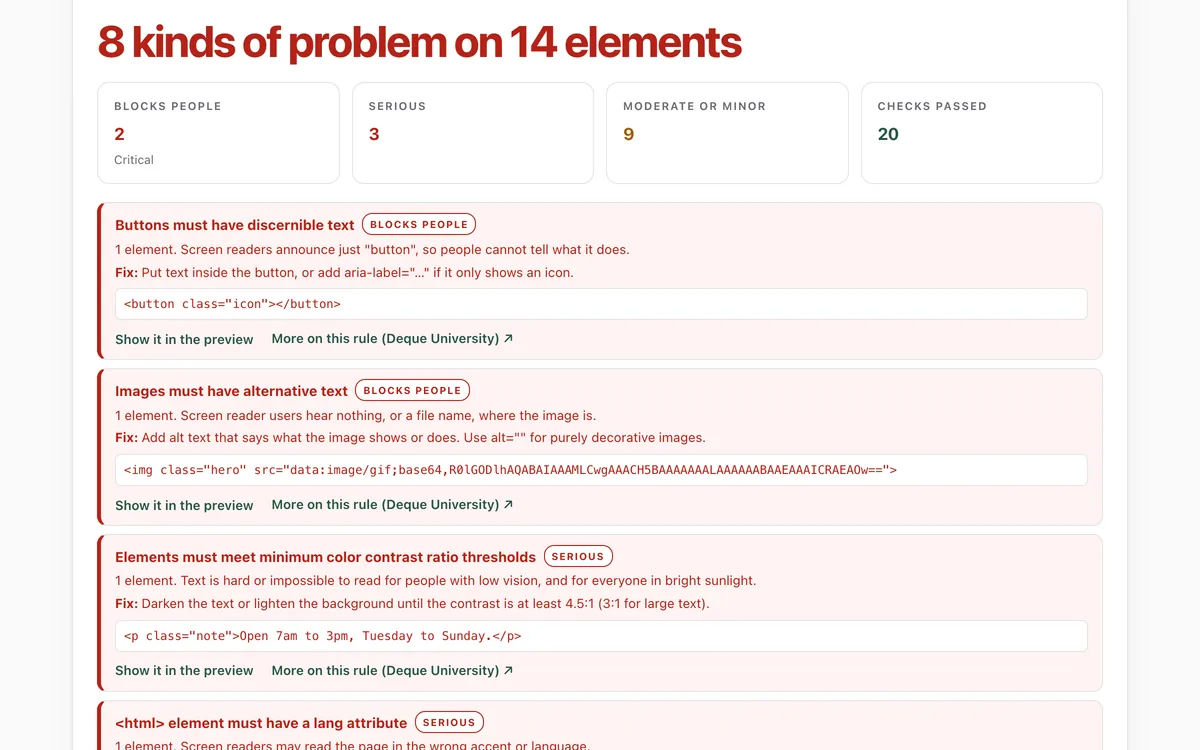
Images without text alternatives, buttons and links with no name, form fields with no label, and missing page language.
Low vision
Text whose colour contrast is too low to read, measured against WCAG's 4.5:1 and 3:1 thresholds.
Structure
Headings that skip levels, missing main landmarks and headings, and lists and tables that screen readers misread.
Keyboard
Focusable things hidden from screen readers, confusing tab order and areas you cannot scroll without a mouse.
How to use it
- Open the lab and paste HTML: a whole page (View Source, select all, copy) or just a component. Or press Try an example.
- Press Check accessibility. Problems are listed worst first, each with who it affects and the fix.
- Press Show it in the preview to see the element outlined in your page.
- Fix, paste again and re-check. Use Copy the report to keep a list for your team or your AI agent.
Good to know
- Automatic checks find about a third to a half of accessibility problems. Also try the page with only a keyboard and with a screen reader.
- Images, fonts and external stylesheets do not load in the lab (nothing is fetched), so paste pages with their styles inline for accurate colour contrast.
- Pasted scripts are removed, so pages that build their content with JavaScript need their rendered HTML (copy it from the browser's developer tools).
What we found
We ran four public pages through the lab: W3C's deliberately inaccessible demo page, its repaired version, and our own two home pages. Our own pages had faint grey text on light panels.
How-to
About one person in six lives with a disability. Many use a screen reader, a keyboard instead of a mouse, zoom, or high contrast. Small mistakes, like an icon button with no name or pale grey text, can lock them out, and many are easy to fix once you can see them.
Check a page
- Open the page in your browser, choose View Page Source, select everything and copy it. For a component, copy just its HTML.
- Paste it into the accessibility check and press Check accessibility.
- Start with problems marked Blocks people, then Serious. Each one says who it affects and how to fix it; Show it in the preview outlines the element.
The fixes that matter most
- Images: give every meaningful image
alttext; usealt=""for decoration. - Buttons and links: make sure each has visible text, or an
aria-labelif it only shows an icon. - Forms: connect every field to a
<label>. - Contrast: normal text needs at least 4.5:1 against its background, large text 3:1.
- Structure: one
<h1>, headings in order, content inside<main>, and<html lang="en">.
Then check by hand
Automatic checks catch about a third to a half of problems. Also:
- Put the mouse away and use the page with Tab, Shift+Tab, Enter and Space. Can you reach and use everything, and always see where you are?
- Turn on your screen reader (VoiceOver on a Mac or iPhone, TalkBack on Android, NVDA on Windows) and listen to the page.
- Zoom to 200%: nothing should be cut off or overlap.
For your AI agent
Ask your agent to paste its HTML into this lab (or run axe-core in its own tests) before it says a page is done, and to fix every Blocks people and Serious problem first. Its report can go straight into your issue tracker.
Check that it's private
This lab runs entirely in your browser and sends nothing anywhere. You don't have to take our word for it:
- The browser enforces it. This site's security policy only lets pages talk to lab.hopperlabs.ai. This command shows
connect-src 'self':curl -sI https://lab.hopperlabs.ai/labs/accessibility-check/run | grep -i content-security-policy - Every file is listed with its fingerprint and source commit in privacy.json, so you or your agent can compare them and read the code.
- Once the lab has loaded, turn off Wi-Fi: it keeps working, because it needs nothing from the network.
More labs
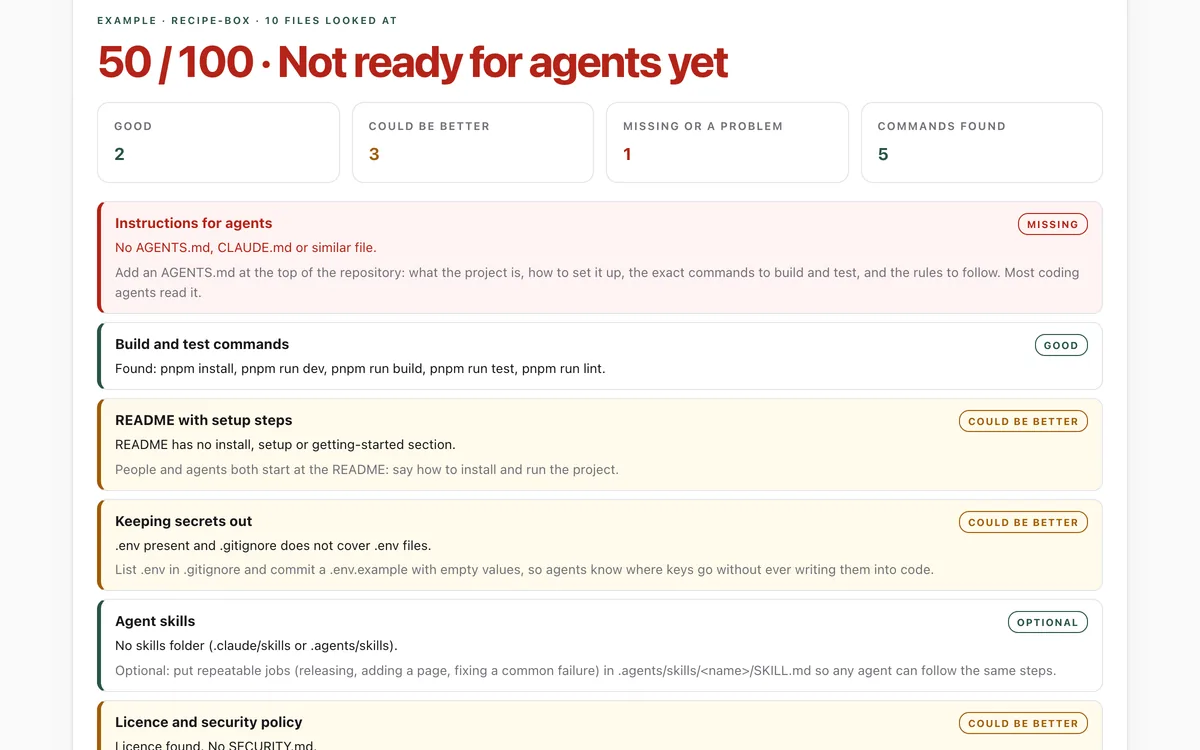
Make your repo agent-ready
Can an AI coding agent find its instructions, build, test and keep secrets out of your repository?
Open lab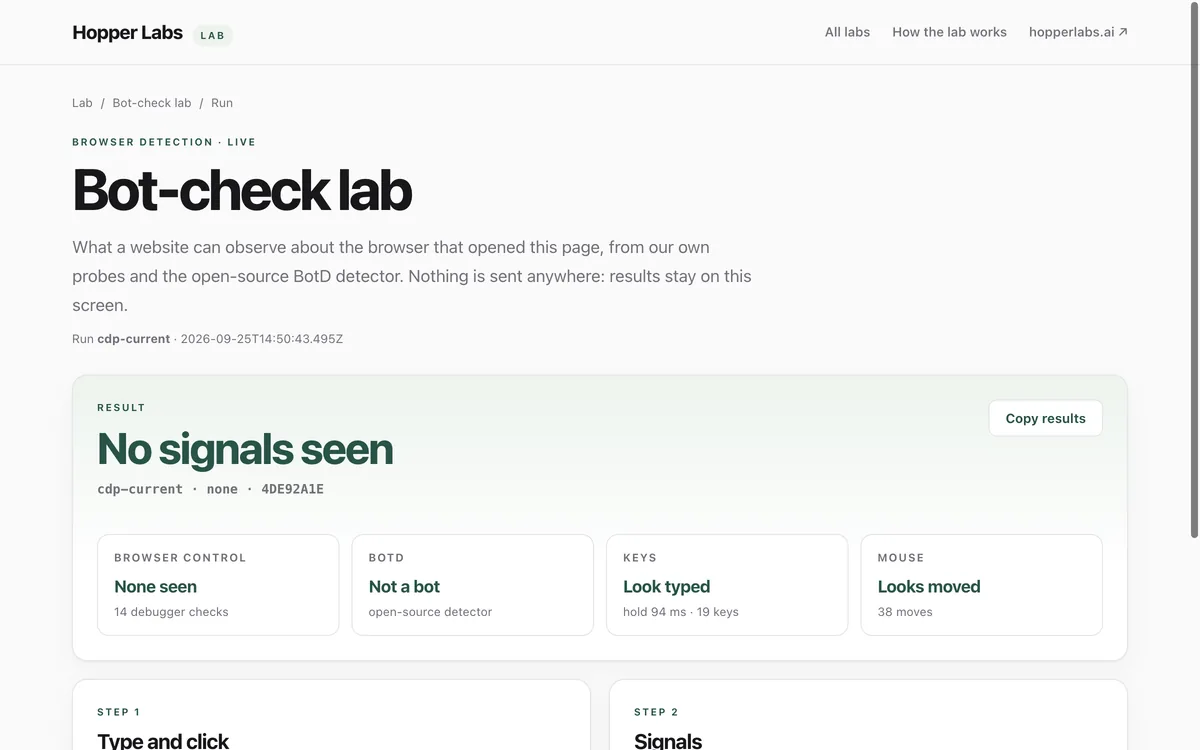
Bot-check lab
What can a website tell about the browser that opened it?
Open lab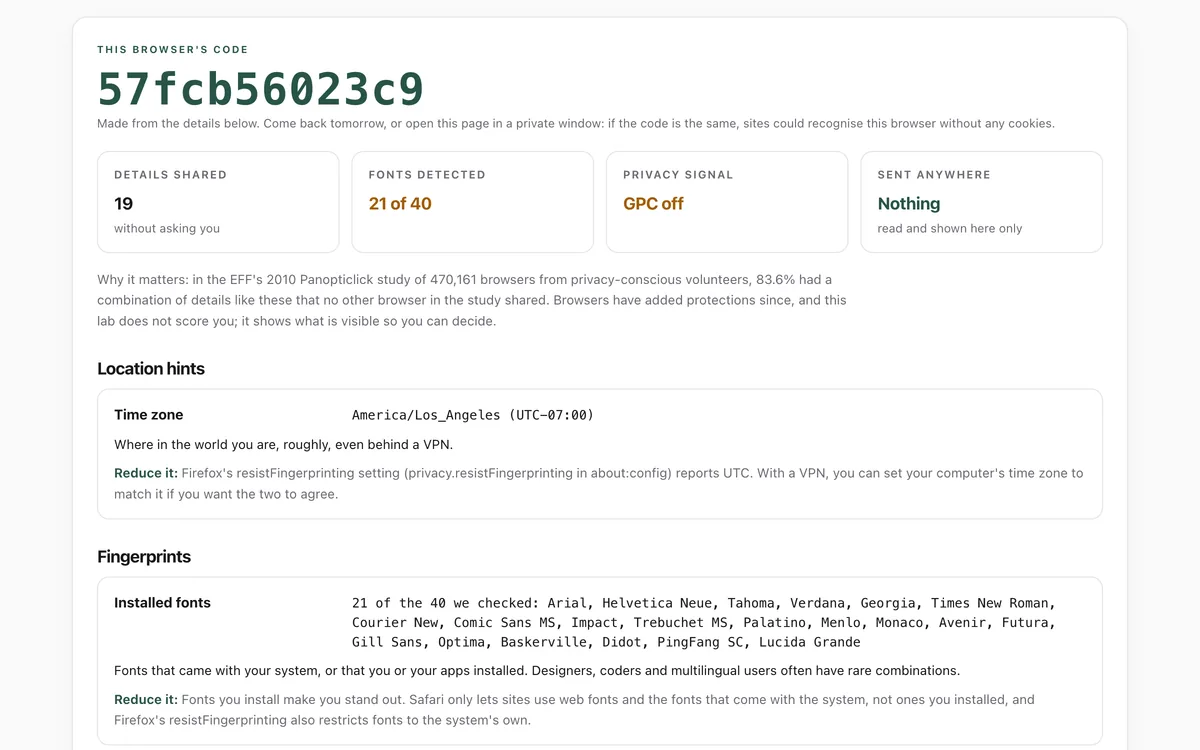
What your browser gives away
What can any website learn about you without asking?
Open lab