Suspicious email check
Who really sent this email, and what do its links hide?
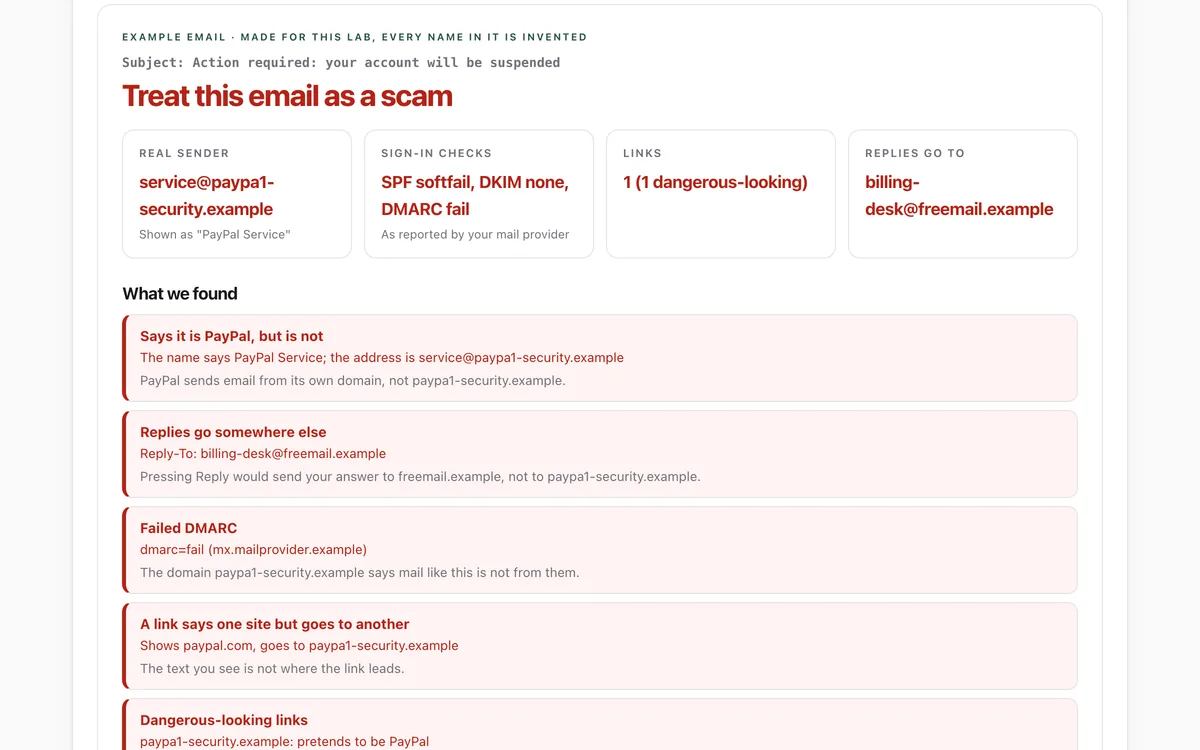
Paste an email's headers or drop in the saved message to see the real sender, where replies go, what your mail provider's SPF, DKIM and DMARC checks said, which links are disguised, and which attachments are risky. Nothing is uploaded.
What it measures
The real sender
The address behind the display name, look-alike domains, company names used from someone else's domain, and your own organisation's name used from outside it.
Replies and sign-in checks
Where Reply goes, and the SPF, DKIM and DMARC results in the topmost Authentication-Results line, with the name of the server that wrote them so you can check it is your own provider.
Links
Links whose text shows one site but lead to another, and every link in the message, HTML or plain text, run through the link check.
Words and attachments
Pressure to act fast, requests to sign in or pay, fake shared-document notices, and attachment types that can run code or hide a fake sign-in page.
How to use it
- Copy the email's headers or whole source (the page shows how for Gmail, Outlook and Apple Mail), or save the email as a .eml file.
- Paste it into the box or drop the file on the lab. Or try the example email.
- Read the verdict and the four tiles, then the plain-English list of warning signs.
- If it says treat it as a scam: do not click, reply or open attachments. Contact the company through its own site or app.
Good to know
- It reads what is in the email. It cannot look up the sender's domain, so SPF, DKIM and DMARC come from the results written in the headers, which are only trustworthy if your own provider wrote them.
- Passing those checks only means the email really came from the domain shown; in our test most phishing emails passed DMARC for their own look-alike domains.
- We have measured it on real phishing email; we have not yet measured how often it raises warnings on ordinary email.
Give your agent this skill
Try the lab, then let your AI agent keep what it teaches. Read the skill first; install it only if you want to.
What we found
On a year of real phishing emails it held back for testing, the check called 64% a scam and warned about another 24%. It also showed why sender checks alone are not enough: most of these scams passed DMARC.
How-to
Scam emails copy a company's look perfectly. What they cannot copy is where they really come from and where their links really go. Here is how to check, in about a minute.
1. Look at the real address
Tap or hover over the sender's name. The name ("PayPal Service") is typed by the sender and can
say anything; the address after it (service@paypa1-security.example) is what counts. Look for
extra words, look-alike letters and unfamiliar endings.
2. Check the headers
Headers are the hidden lines at the top of every email: who sent it, the servers it passed through, and the checks your mail provider ran.
- Gmail: open the email, then the three-dot menu > Show original > Copy to clipboard.
- Outlook desktop: open the email, then File > Properties > Internet headers.
- Outlook on the web: … > View > View message source.
- Apple Mail: View > Message > Raw Source.
Paste them into the suspicious email check. It shows the real sender, where replies go, and what SPF, DKIM and DMARC said. A fail is a strong warning; a pass only means the email came from the domain shown, which a scammer can own.
3. Hover before you click
Hover over a link (or press and hold on a phone) to see the real address. If the text says
paypal.com but the address says something else, it is a scam.
4. When in doubt, go direct
Do not reply, click or open attachments. Open the company's app or type its address yourself, or call a number you already have. Real companies never mind you checking.
For your AI agent
Give your agent the Is this email real? skill. Before it trusts or acts on an email for you, it checks the sender, the links and the request, and asks you first.
Check that it's private
This lab runs entirely in your browser and sends nothing anywhere. You don't have to take our word for it:
- The browser enforces it. This site's security policy only lets pages talk to lab.hopperlabs.ai. This command shows
connect-src 'self':curl -sI https://lab.hopperlabs.ai/labs/email-check/run | grep -i content-security-policy - Every file is listed with its fingerprint and source commit in privacy.json, so you or your agent can compare them and read the code.
- Once the lab has loaded, turn off Wi-Fi: it keeps working, because it needs nothing from the network.
More labs
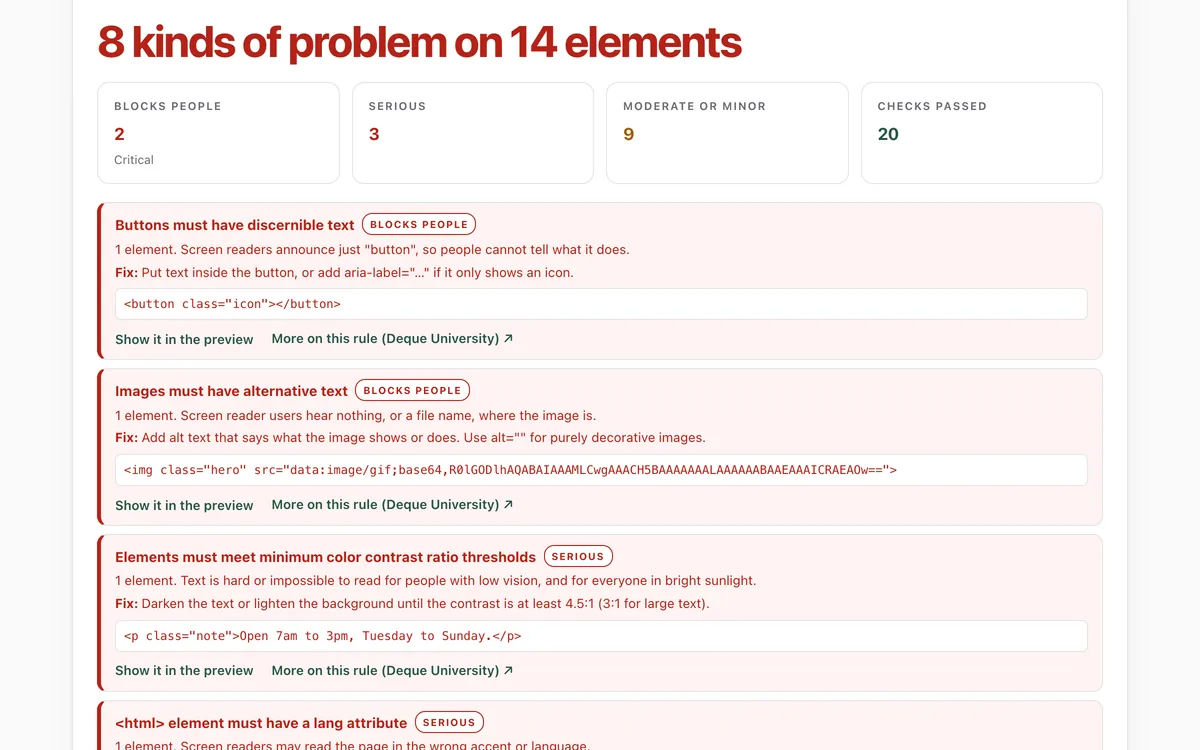
Accessibility check
Can everyone use this page, including people using a screen reader or a keyboard?
Open lab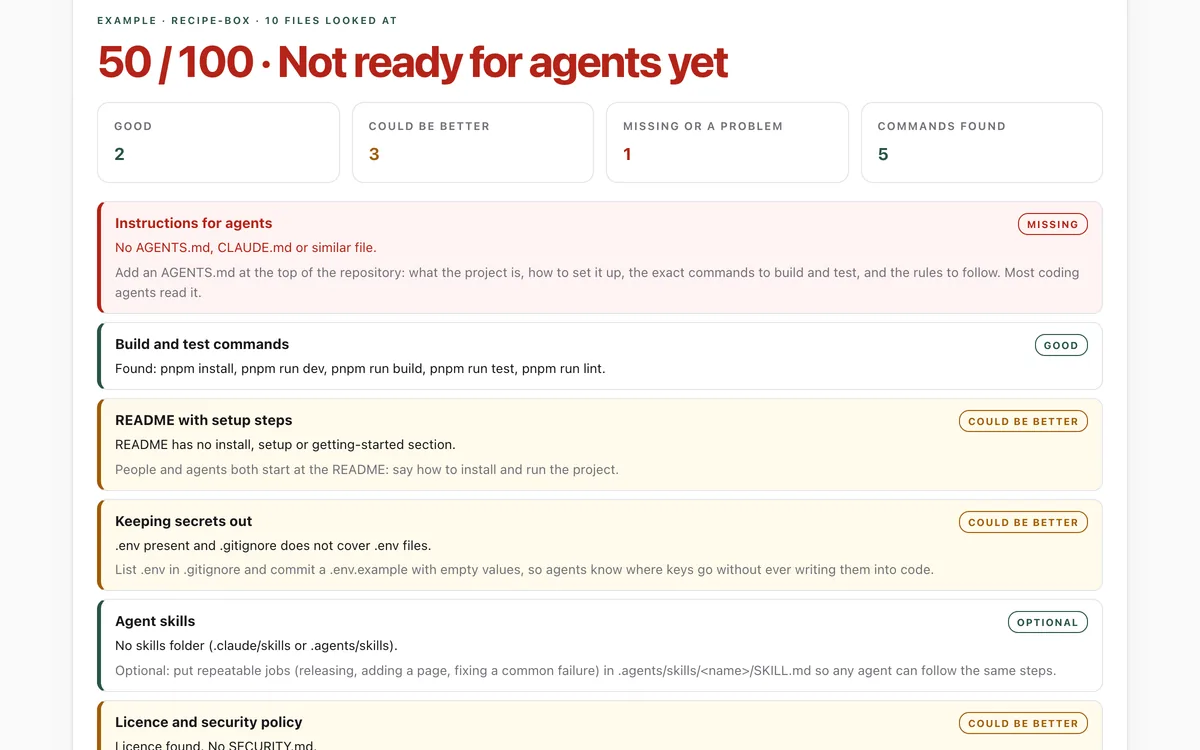
Make your repo agent-ready
Can an AI coding agent find its instructions, build, test and keep secrets out of your repository?
Open lab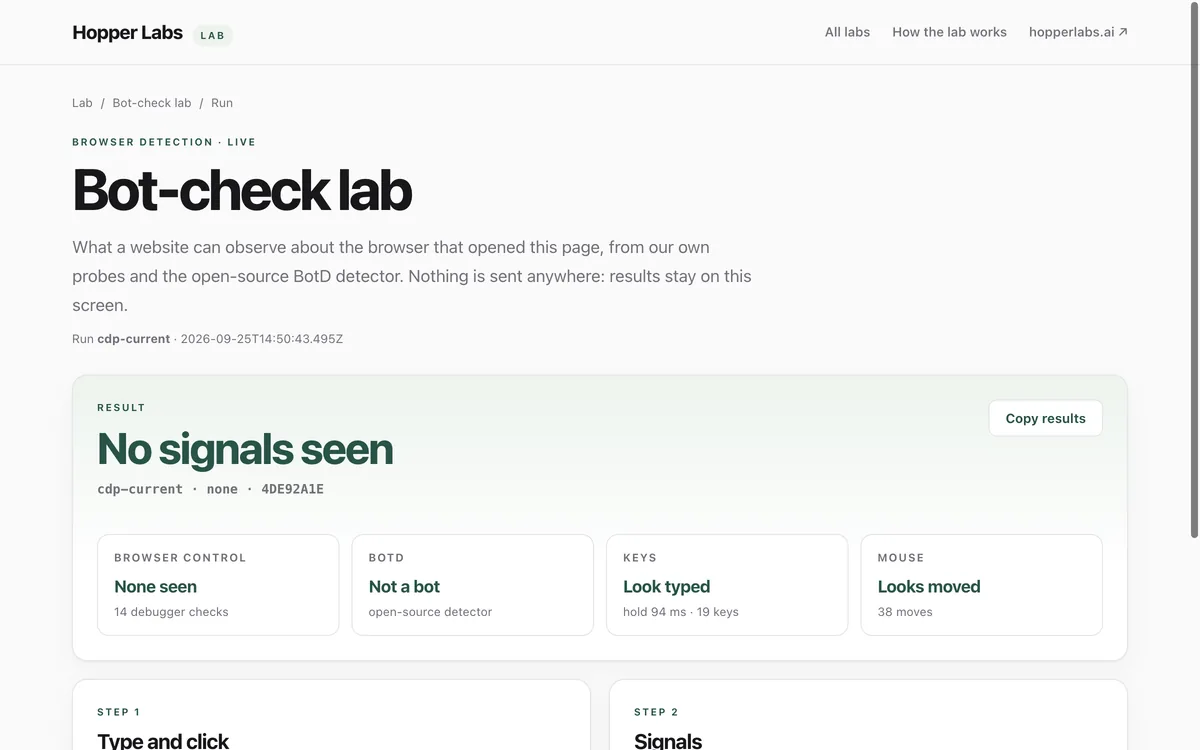
Bot-check lab
What can a website tell about the browser that opened it?
Open lab