Update lab
How does a safe app update itself, and what stops a fake update?
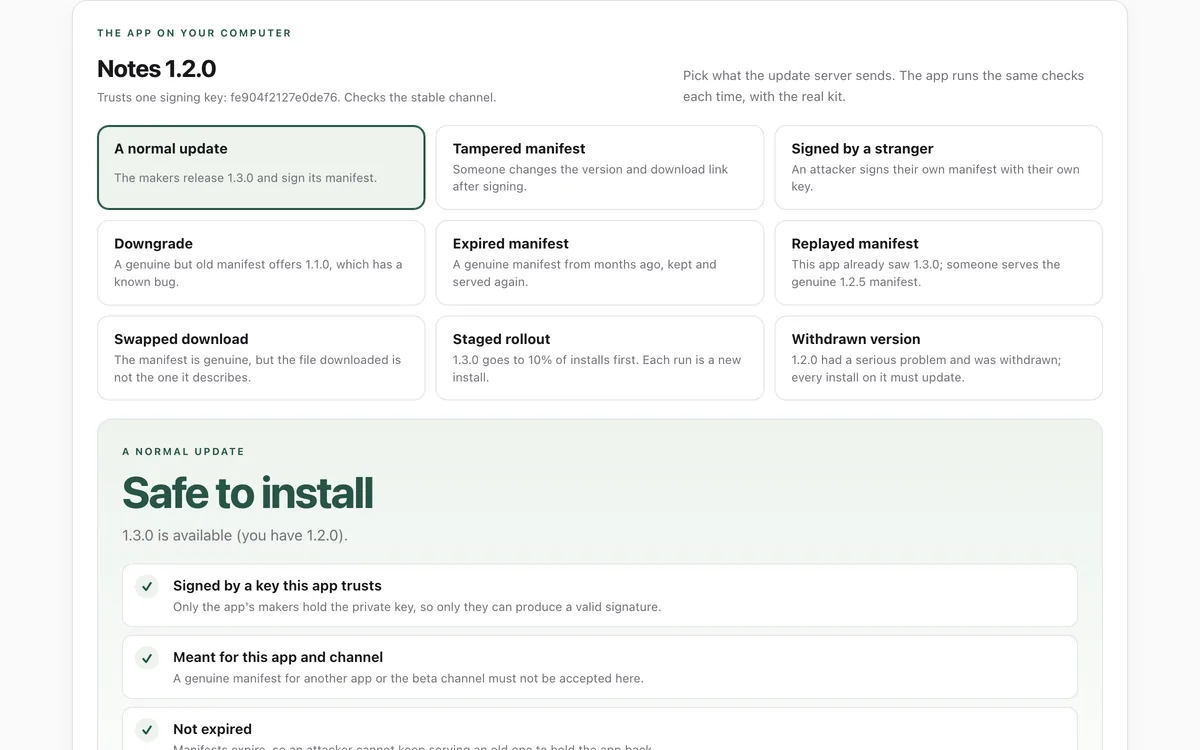
Watch an app check for updates the safe way, then throw attacks at it: a tampered manifest, a stranger's key, a downgrade, an expired or replayed manifest, a swapped download. Every check runs in your browser with the Hopper Labs update kit.
What it measures
Signature
The update's manifest must be signed by a key built into the app, so changing it or signing your own fails.
Version and freshness
Older versions are refused, manifests expire, and an older manifest after a newer one is a replay.
Rollout
Releases can go to a share of installs first, and withdrawn versions are told to update.
Download
The file must match the size and SHA-256 in the signed manifest before anything is installed.
How to use it
- Open the lab. It starts with a normal update, checked step by step.
- Pick an attack, such as Tampered manifest or Swapped download, and see which check stops it.
- Try Staged rollout a few times; each run is a new install that may or may not get the update yet.
- Read the how-to below to add the same checks to your own app, or give your agent the skill.
Good to know
- The lab shows the checks, not a real installer. Installing is different on every platform.
- Signing is only as safe as the private key. Keep it offline, and use two keys for important apps.
- The lab's manifests are signed with a demo key whose private half was discarded after signing.
Give your agent this skill
Try the lab, then let your AI agent keep what it teaches. Read the skill first; install it only if you want to.
What we found
Every attack was refused at the check meant to stop it, and the normal update passed all seven checks.
How-to
An auto-updater is the most powerful code in your app: whoever controls what it installs controls every computer running it. The safe pattern is short.
The pattern
- Sign a manifest for each release. The manifest names the app, channel, version, release and expiry dates, and each download's size and SHA-256. Sign it with a private key you keep offline. Ship only the public key inside the app.
- Verify before believing anything. The app downloads the manifest and checks the signature against its built-in key. Nothing in an unsigned or wrongly signed manifest is used.
- Refuse the tricks. Wrong app or channel, expired, older than the installed version, or older than a manifest this install already saw: refuse.
- Check the download. Size and SHA-256 must match the signed manifest before installing.
- Roll out gradually. Offer a release to 10% of installs, then everyone. Mark broken versions as withdrawn so they update right away.
With the Hopper Labs update kit
The update kit does all of this with no dependencies, in browsers, Node, Bun, Deno, Electron and Tauri apps. It is what the update lab runs.
hopper-update-kit keygen release-key.jwk          # once; keep it secret, out of git
hopper-update-kit sign manifest.json --key release-key.jwk > stable.json
import { checkForUpdateAt, verifyArtifact } from "@hopperlabs/update-kit";

const result = await checkForUpdateAt("https://downloads.example.com/stable.json", {
  trust: { keys: [{ keyId: "…", publicKey: "…" }] },
  app: "com.example.notes", channel: "stable", currentVersion: "1.2.0", platform: "darwin-arm64",
  installId, lastSeen,
});
if (result.status === "available" || result.status === "required") {
  await verifyArtifact(downloadedBytes, result.artifact);
  // install, then save result.manifest.version and .released as lastSeen
}
The kit is not yet published to npm; it will be released as open source.
Using a framework's updater
Tauri's and Electron's updaters verify signatures too. Keep them, and add what they leave to you: expiry, replay protection, staged rollouts and withdrawn versions.
For your AI agent
Give your agent the Add safe auto-updates skill. It adds this pattern to an app step by step, keeps the signing key out of the repository, and asks you before each change.
Check that it's private
This lab runs entirely in your browser and sends nothing anywhere. You don't have to take our word for it:
- The browser enforces it. This site's security policy only lets pages talk to lab.hopperlabs.ai. This command shows
connect-src 'self':curl -sI https://lab.hopperlabs.ai/labs/update-lab/run | grep -i content-security-policy - Every file is listed with its fingerprint and source commit in privacy.json, so you or your agent can compare them and read the code.
- Once the lab has loaded, turn off Wi-Fi: it keeps working, because it needs nothing from the network.