Photo privacy check
What does a photo give away before you share it?
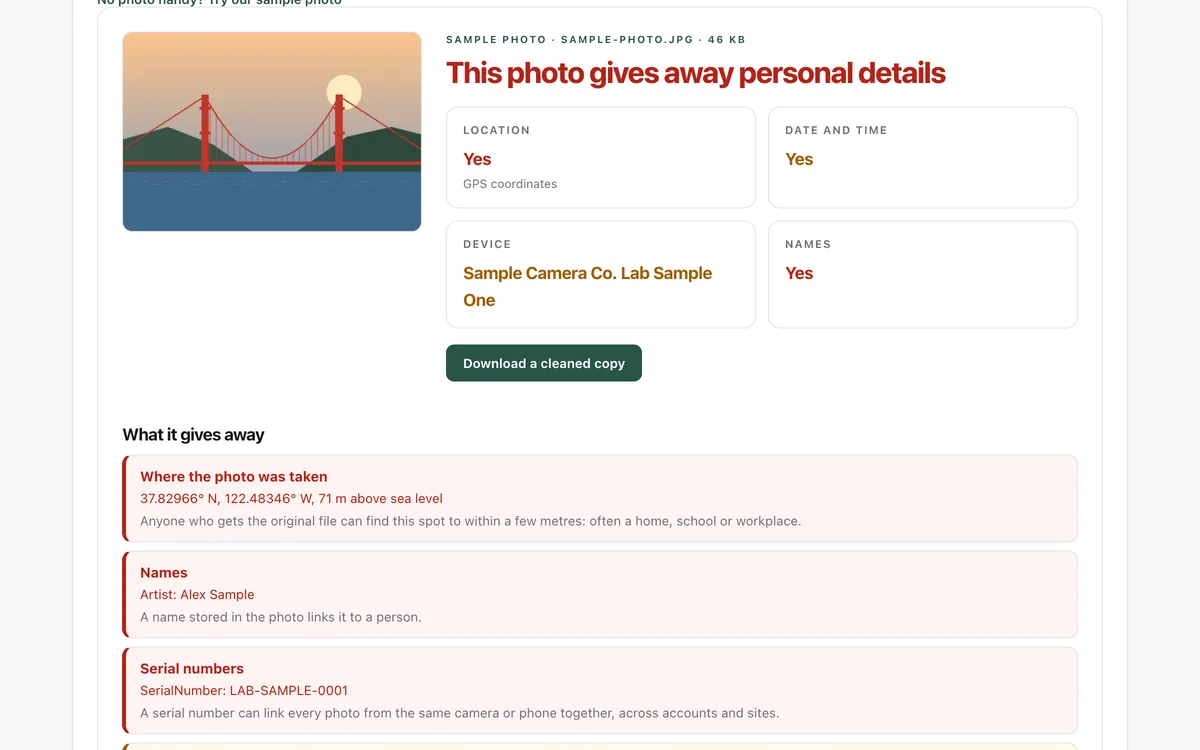
Drop in a photo to see the location, time, device, names and serial numbers hidden in the file, then download a cleaned copy. The picture itself is untouched, and it never leaves your browser.
What it measures
Location
GPS coordinates and written-in place names: the details that can lead someone to a home, school or workplace.
People and devices
Names of the owner or photographer, camera and lens serial numbers, and the make and model of the phone or camera.
Time
When the photo was taken, sometimes with your time zone.
Hidden extras
Embedded preview images that can show an uncropped original, and data after the picture such as Motion Photo clips.
How to use it
- Open the lab and choose one or more photos, or drop them on the box. No photo handy? Use the sample.
- Read the verdict and the four tiles, then the plain-English list of what the file gives away.
- Press Download a cleaned copy. The lab removes the metadata, checks the copy again, and only then saves it.
- Share the cleaned copy instead of the original.
Good to know
- It reads the photo file itself. What a site or app does with photos you upload is up to that site.
- The picture can give things away too (a street sign, a school logo); the lab only cleans the hidden data.
- HEIC photos (iPhone) are read everywhere, but cleaning them needs a browser that can open HEIC, such as Safari; the copy is saved as JPEG.
Give your agent this skill
Try the lab, then let your AI agent keep what it teaches. Read the skill first; install it only if you want to.
What we found
We ran the lab's reader and cleaner on eleven real photos from exifr's public test set: phones, cameras and edited files. Every cleaned copy came out with nothing personal left and the picture data byte-for-byte unchanged.
How-to
Most phones record where each photo was taken, to within a few metres, inside the photo file. Some sites remove it when you upload; many messaging apps, email, cloud links and file transfers do not. Here is how to check a photo and clean it.
Check a photo
- Open the photo privacy check and drop in the photo.
- If the Location tile says Yes, anyone who gets that file can see where it was taken.
Clean it
- In the lab: press Download a cleaned copy. Share the copy, not the original.
- iPhone: when sharing, tap Options at the top of the share sheet and turn off Location. To stop recording it at all: Settings > Privacy & Security > Location Services > Camera > Never.
- Android (Google Camera): open the camera settings and turn off Save location. In Google Photos, Settings > Sharing lets you remove the location from photos you share by link.
- Mac: in Photos, choose Image > Location > Hide Location before exporting, or in Preview use Tools > Show Inspector > the GPS tab > Remove Location Info.
- Windows: right-click the file, Properties > Details > Remove Properties and Personal Information.
Check again
Drop the cleaned copy into the lab. It should say No personal details found.
For your AI agent
Give your agent the Strip location before sharing photos skill. It checks photos for location and names before uploading or attaching them anywhere, cleans them with tools already on your computer, and asks you first.
Check that it's private
This lab runs entirely in your browser and sends nothing anywhere. You don't have to take our word for it:
- The browser enforces it. This site's security policy only lets pages talk to lab.hopperlabs.ai. This command shows
connect-src 'self':curl -sI https://lab.hopperlabs.ai/labs/photo-privacy/run | grep -i content-security-policy - Every file is listed with its fingerprint and source commit in privacy.json, so you or your agent can compare them and read the code.
- Once the lab has loaded, turn off Wi-Fi: it keeps working, because it needs nothing from the network.